When your event has days and sub-events, each door screen checks guests in for one of them at a time: Friday's gala at the hall, Saturday's golf at the course. A guest who isn't on its list gets a warning saying what they do have, and the volunteer decides whether to let them in anyway. Everyone let in anyway is saved with who let them in, for you to look over afterwards.
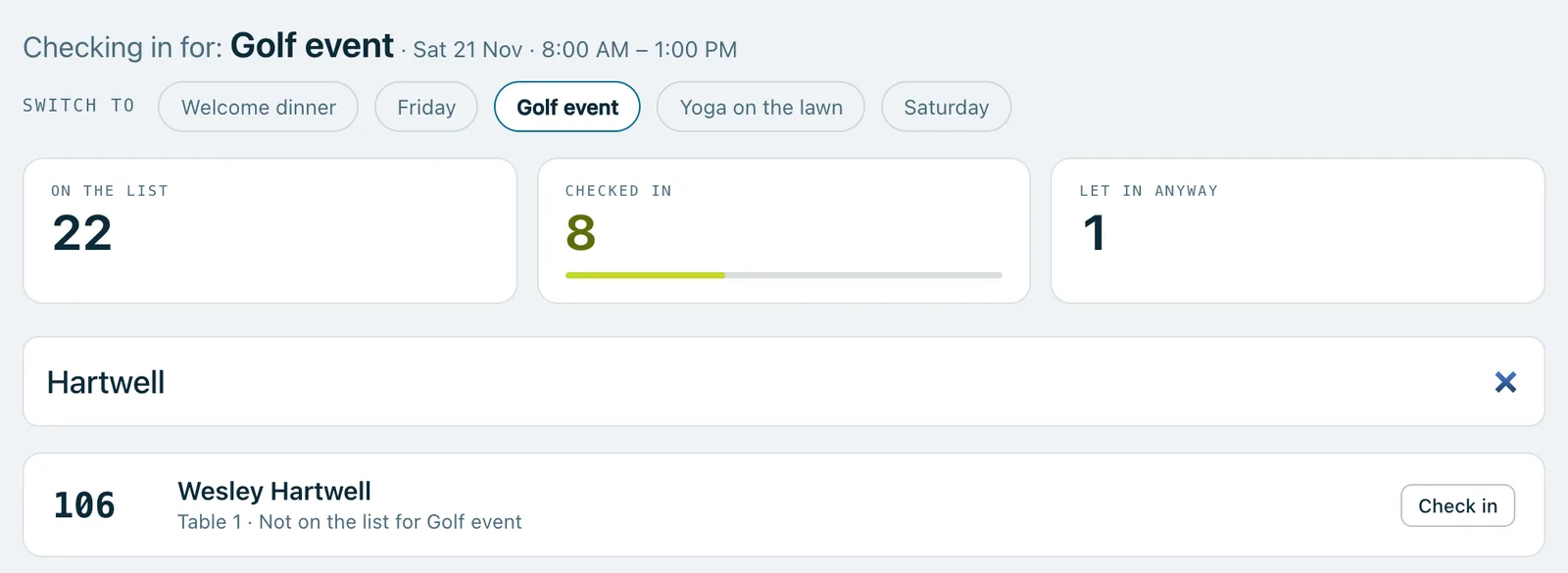
The door on an iPad checking in for the golf event on Saturday morning, with buttons to switch to another day or sub-event, 22 on the list, 8 checked in, 1 let in anyway, and a guest found who isn't on the golf event's list.
Real screenshots of Paddlit, taken with a made-up organisation, Maple & Main Children's Fund.
Checking in for
With a schedule, the door screen asks what it's checking guests in for, and shows the choice large at the top: “Checking in for: Golf event”, with its day and time. Switching to another is one tap.
Each device remembers its own choice for that event, so the iPad at the golf course stays on golf. The first time a device opens the door, it starts on today's day or sub-event when only one is on today; with two on the same day, it asks. After that, only staff change it.
The counts at the top are for the chosen one: how many are on its list, how many have checked in, and how many were let in anyway. Each guest's row says whether they're checked in, let in anyway, or not on its list.
A guest who isn't on the list
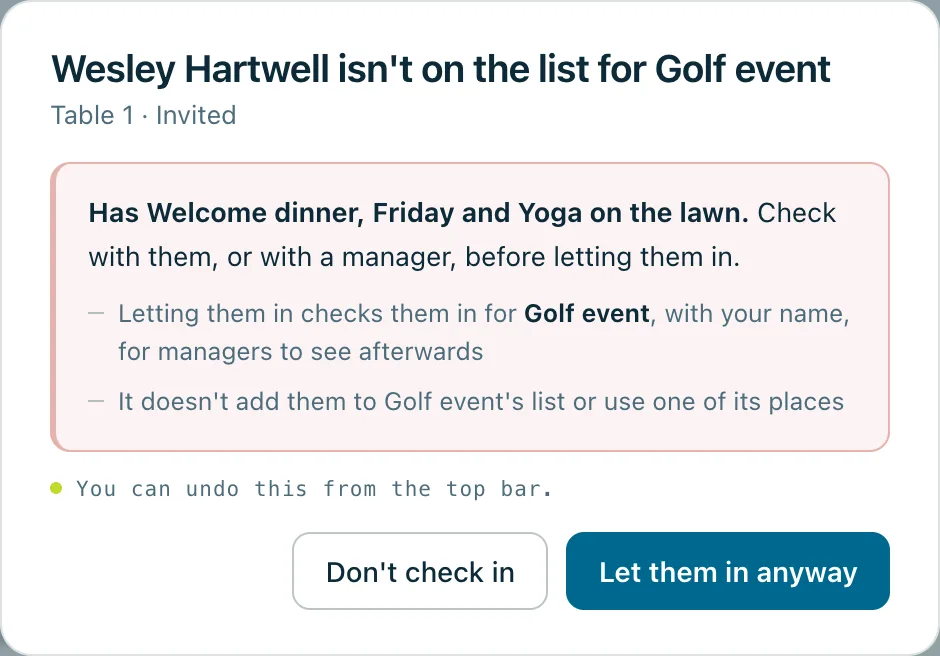
A warning, not a wall. The screen says the guest isn't on the list for it, and what they do have, like “Has Welcome dinner, Friday and Yoga on the lawn”.
Two choices. Let them in anyway, or Don't check in. Don't check in is the one ready to press, so Enter never lets anyone in by mistake.
Let in, not added. Letting them in checks them in for that day or sub-event, with the volunteer's name. It doesn't put them on its list or use one of its places, so a full golf event stays full.
If the door's list is out of date, Paddlit still gives the same warning when the volunteer tries to check them in.
Every way in
Searching a name or bidder number, as above.
Walk-ups. Someone added at the door is checked in for the door's day or sub-event straight away, and put on its list too, unless it's full: then they're let in anyway.
The guest card. Check in on a guest's card uses the device's choice. Otherwise staff pick the day or sub-event.
Reversing a check-in is for one day or sub-event at a time. A guest who's still checked in for another stays checked in.
Every check-in can be undone straight after, from the top bar.
Afterwards
The event's report shows how many came to each day and sub-event, out of how many were on its list, and lists everyone let in anyway: their bidder number, which day or sub-event, who let them in and when.
The guest card's activity says which day or sub-event each check-in was for, like “Checked in for Friday” or “Let in to Golf event anyway”, with who did it.
The guests spreadsheet in your organisation's download has a column for the days and sub-events each guest was checked in for.
With or without a schedule
An event without days and sub-events checks guests in as one occasion, exactly as before. Check-in by day comes with days and sub-events, and an event that has them keeps checking in by day on the night, even if its plan changes.
The warning for that guest: Wesley Hartwell isn't on the list for Golf event, has Welcome dinner, Friday and Yoga on the lawn, with Don't check in and Let them in anyway.
In practice
How it plays out
Golf at the course, the gala at the hall
On Saturday morning a volunteer opens the door on an iPad at the golf course and taps Golf event.
Golfers on the list are checked in with a tap, and the counts show how many have arrived.
A guest who's only down for Friday and yoga turns up with their clubs. The screen warns that they aren't on the list for Golf event and shows what they do have.
The volunteer checks with the organiser and taps Let them in anyway. The golf event's places stay as they were.
A walk-up on Friday night
Someone arrives at the gala who isn't on the guest list.
The door, set to Friday, adds them as a walk-up.
They're checked in for Friday straight away, and put on Friday's list.
Looking back on Monday
The event manager opens the event's report.
It shows how many came to each day and sub-event, out of how many were on its list.
Under Let in anyway is the guest who came to golf, who let them in and when.
See your next fundraising night on Paddlit
Sign-ups open soon. Book a demo and we'll show you around.