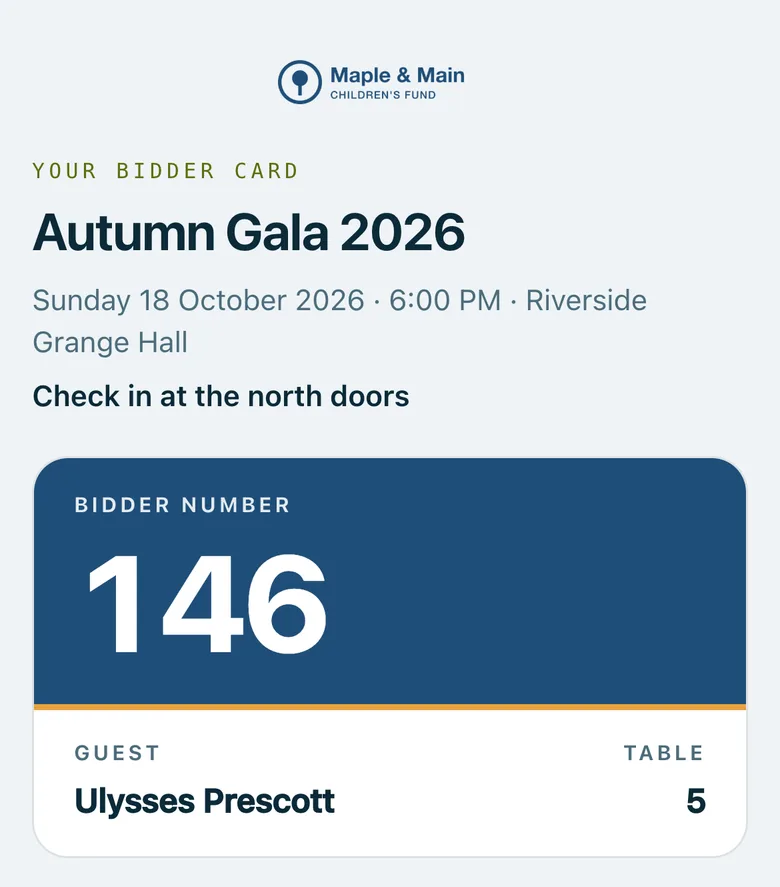
Each guest gets a bidder card for their phone's wallet: Apple Wallet on iPhone, Google Wallet on Android. It carries their bidder number, table and a code to show at the door, in your logo and colours, and it updates by itself when something changes.
A guest's own page on a phone, in the organisation's colours: the event, where to check in, and their bidder number, name and table.
Real screenshots of Paddlit, taken with a made-up organisation, Maple & Main Children's Fund.
Adding the card
Each guest gets their own link, by email or text, or on their order page when they buy a ticket. It opens a page with:
Their bidder number (or a note that it's given out at check-in), their name and their table.
Add to Apple Wallet and Save to Google Wallet, with their own phone's button first.
A code to show at check-in, with a note that this screen works too if they'd rather not use a wallet app.
If the event needs everyone to have a table and theirs isn't set yet, the page says it's still being arranged and the wallet buttons wait.
What the card shows
On iPhone, the front of the card shows the table, the bidder number in large type, the guest's name ("A. Whitfield"), the event, the time doors open and the venue, with the code to scan at the door. The back has the event's details, how to use the card, a link to the guest's own page and your organisation's email address for questions.
On Android, Google Wallet shows the bidder number, the guest, their table, the doors time, the venue, the event and the code.
Both use your logo and colours. Neither holds an email address, a phone number or any payment details, and you can hide the name, table or date lines for an event.
It updates by itself
When something changes, the card on the guest's phone changes too. On iPhone a short note says what changed, such as "Your table is now 12". Cards update when:
A manager changes a guest's table or bidder number.
A number is given out at check-in.
The event's name, date, time, venue or check-in note changes.
Your organisation's logo changes.
If an order is refunded, or a guest's details are erased, their card stops working.
On the lock screen at the venue
Give the event a venue location, looked up from its address, and the iPhone card carries it, with a short message you can change (by default, a welcome to the venue by name and a reminder to show the card at check-in). iPhones can then offer the card on the lock screen near the venue around the event's start; when that happens is up to the iPhone. Google Wallet doesn't do this.
Seeing who has their card
When a guest adds their card, the guest list marks it, and both the guest list and the door show how many have. You can filter the list to find the people who haven't yet, and send them a reminder.
Guests without a phone
Nobody needs a phone to get in. At the door, volunteers find guests by typing their name or number, and the code on the card's own page works from any screen.
In practice
How it plays out
A guest's table changes the afternoon of the gala
A manager moves a guest from table 4 to table 12 on the guest list.
The card in the guest's Apple Wallet updates on its own, with a note saying the table is now 12.
At the door, the volunteer scans the code and sees the same table.
Arriving at the venue
The organiser gave the event a venue location when setting it up.
Around the start time, near the venue, a guest's iPhone can show the card on the lock screen, welcoming them to the venue.
They tap it, and the code is ready for the door.
See your next fundraising night on Paddlit
Sign-ups open soon. Book a demo and we'll show you around.